
How to Filter Spam Leads and Qualify Leads Automatically
Mark every lead Good, Not a fit, or Spam the moment it arrives with rules, AI, CRM statuses, or your team, so spam leaves your reports and ad platforms learn from real leads.
On this page
Not every form fill is a lead. Job seekers, sales pitches, throwaway emails, and bots all count as conversions in most tools, which inflates results and teaches your ad platforms to find more of the same. Lead quality sorts every lead into Good, Not a fit, or Spam the moment it arrives, so your reports and ad platforms only learn from real leads.
How a lead gets its quality
Every lead starts as Not reviewed, then is decided by whichever of these comes first:
- Your lead rules, the moment the lead arrives
- Ask AI, when a rule asks a question about the lead’s message
- Your CRM, when the contact’s status or stage changes, such as to Qualified or Unqualified
- A teammate, from Contacts. A person’s choice is final and rules never override it.
Step 1: Open Lead quality
Open Setup in the left sidebar, then Lead quality. Workspace admins and editors can change rules.
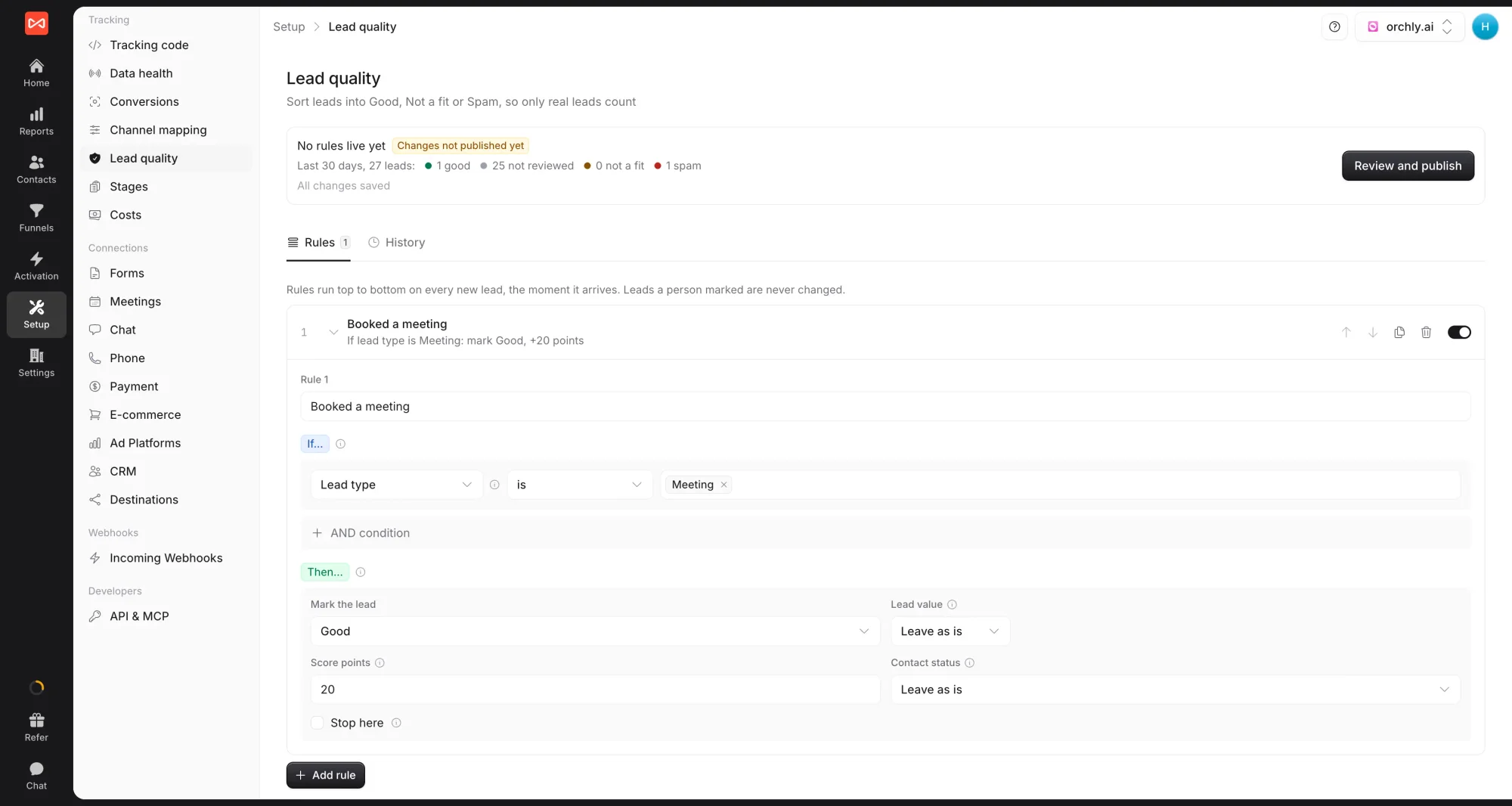
Step 2: Add rules
Start from a template or click Add rule. Useful templates include:
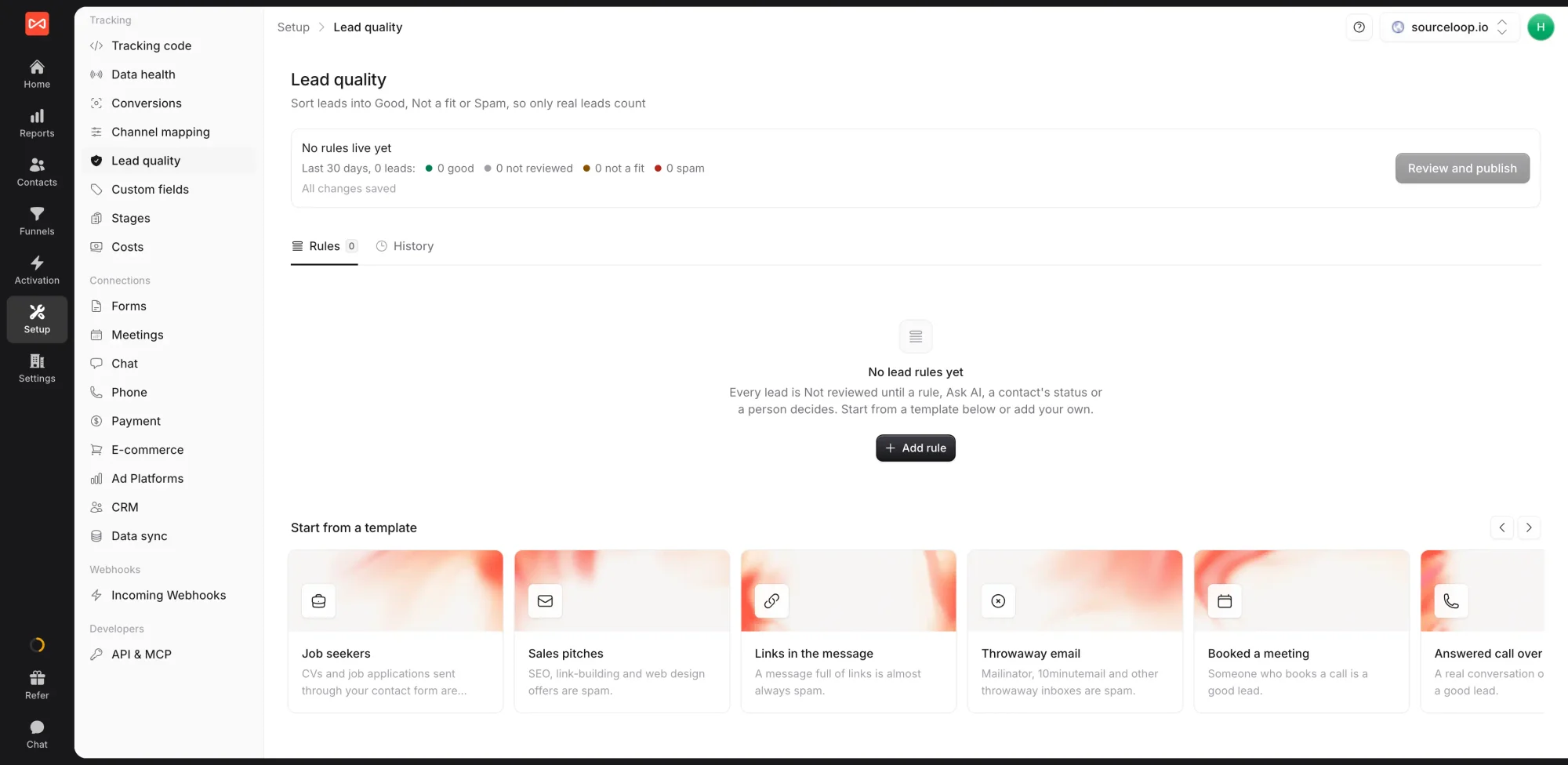
- Booked a meeting: someone who books a call is a good lead
- Answered call over 60 seconds: a real conversation, not a misdial
- Asked for a quote: uses Ask AI to spot quote requests and takes the budget as the value
- Throwaway email: Mailinator, 10minutemail, and similar inboxes are spam
- Job seekers, Sales pitches, and Links in the message: common spam and not-a-fit patterns
- Outside your area: leads from countries you don’t serve are not a fit
Each rule has an If and a Then.
If holds one or more conditions on what you know about the lead:
- The lead: lead type, event, form tool, any form field, the message, email, email domain, free email, throwaway email, phone, gave a phone, name, company
- Where it came from: channel, source, medium, campaign, keyword, landing page, came from an ad click, and the first channel, source, and campaign
- Context: country, city, device, hour of day, weekday, earlier leads from the same person in the last 30 days
- Calls: call answered and call length
- Your CRM: company size and industry, when the company is synced
- Custom fields and Ask AI
Then decides what happens:
- Mark the lead: Good, Not a fit, Spam, or leave as is
- Lead value: a fixed amount, or taken from a form field such as budget
- Score points: add points to the contact’s score
- Contact status: move the contact into a status
- Set a custom field
- Stop here: skip the rules below
Rules run from top to bottom. The first rule to set quality, value, or status wins, points add up, and Stop here ends the run.
Step 3: Ask AI about the message
Some things only a reader can tell, such as whether a message asks for a price or describes a real project. Add an Ask AI a question condition and write the question in plain words, for example “Did the person ask for a quote, a price, a proposal, or an estimate?”
Choose how the answer comes back, such as yes or no, one of a list, a number, or a few words, and which answer makes the condition match. Personal details such as emails and phone numbers are hidden from the AI.
Step 4: Review and publish
Changes are saved as a draft, marked Changes not published yet. When you’re ready:
- Click Review and publish.
- Check the preview of how recent leads would change.
- Under Apply to past leads, choose Only new leads, or re-run on the Last 30 days, Last 90 days, or Last year. You can also choose whether those changes update your CRM and ad platforms.
- Add an optional note for your team and publish.
New leads use the rules straight away. Past leads update in the background, and the History tab lists every publish with an option to undo a re-run.
Step 5: Mark leads by hand
In Contacts, the Lead quality column shows each person’s quality. Click it to change it, or select several people and set quality for all of them at once. Open a lead to see its quality, which rule or person decided it, and any Ask AI answers.
Where lead quality shows up
- Reports: spam leaves every count, and Good leads is available as a metric in your own reports
- Conversion sync: the Good lead moment sends only Good leads to your ad platforms, with their value
- Alerts: Good lead and Spam caught today templates
- CRM sync: Lead quality is written to the contact, and you can send only Good leads to your CRM
What’s next
- Send Good leads to Google and Meta: Conversion sync overview
- Get a Slack message for every Good lead: Slack and email alerts
- Work through your leads: The Contacts table
Frequently asked questions
-
What happens to leads marked Spam?
They leave every report, so they don't inflate conversions or lower your cost per lead. They are never sent to your CRM, ad platforms, alerts, or webhooks, and a spam lead that was already sent to an ad platform is withdrawn.
-
Will rules change leads my team already marked?
No. A lead marked by a person is locked, and rules never change it. Set it back to Not reviewed to let the rules decide again.
-
Do rules apply to leads I already have?
Only if you choose. When you publish, pick Only new leads, or re-run the rules on the last 30 days, 90 days, or year. A re-run can be undone from History.
-
How long does Ask AI take?
Usually seconds. While a rule waits for an answer, the lead's alerts, CRM push, and ad sends wait too, so nothing goes out before the lead is decided. No lead waits more than 15 minutes; after that it is decided without the answer.
-
Does my CRM status affect lead quality?
Yes. When a contact moves to a status or stage such as Qualified, SQL, Opportunity, or Customer, their unreviewed leads from the last 90 days become Good. Unqualified makes them Not a fit.
-
Can I reuse rules across client websites?
Yes. In History, use Copy to clients to put these rules into other websites' drafts, then review and publish them there.

 Paid Social


