
How to Track Form Answers Like Service or Budget on Every Lead
Turn form answers like service, budget, or state into named fields on every lead, even when forms word them differently, then report, qualify, and sync by them.
On this page
Your forms ask questions that matter for marketing: which service someone needs, their budget, their state, their company size. But every form names them differently, so the answers are hard to report on. Custom fields gather those answers into named fields on every lead, such as Service or Budget, that work everywhere a built-in field does.
What you can do with a custom field
- Contacts: show it as a column, filter by it, and edit it
- Reports: break down or filter any chart or table by it, such as leads and revenue by service
- Lead quality rules: qualify on it, such as “Budget at least 2,000 is Good”, or set it from a rule
- Conversion sync and alerts: send or alert only for some values, and include the value in alert messages
- CRM sync, outgoing webhooks, API, and MCP: the value travels with the lead
Step 1: Create the field
- Open Setup in the left sidebar, then Custom fields, and click New custom field.
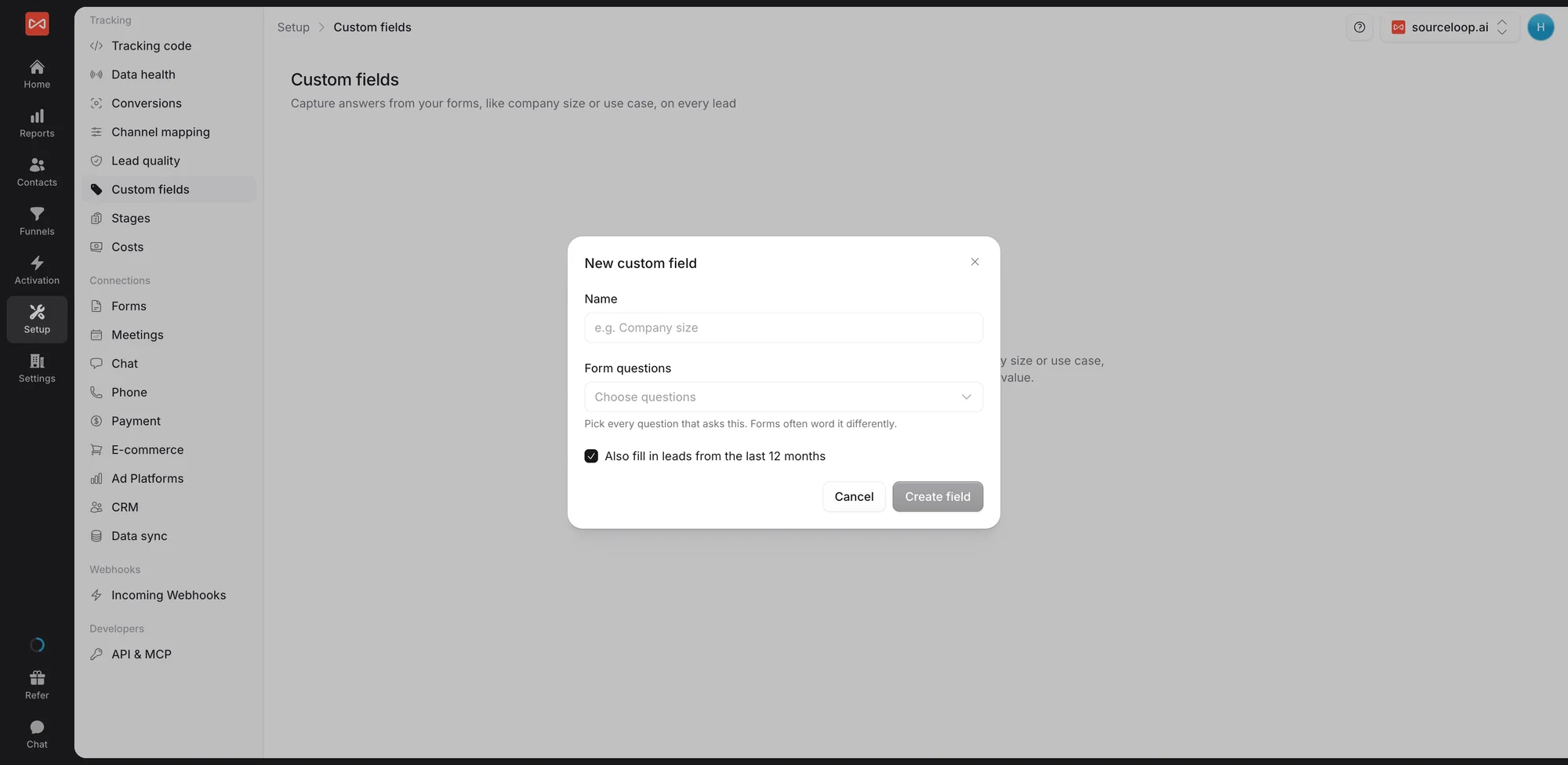
- Enter a Name, such as “Service”. The name is used in reports, rules, and syncs.
- Under Form questions, choose every question that asks this. Forms often word it differently. SourceLoop lists the questions your recent leads answered, with example answers and how many leads gave each one. You can also type a question’s name.
- Order the questions. Each lead takes its value from the first question it answered.
Step 2: Tidy the values
Under Values, SourceLoop shows what recent leads answered:
- Merge answers that mean the same thing into one value
- Choose Store as numbers for amounts such as budget or company size
Step 3: Fill past leads and create the field
Leave Also fill in leads from the last 12 months ticked to give recent leads the field too, then click Create field. New leads take it from now on, and past leads fill in the background. Filling past leads never triggers alerts or ad platform sends.
Step 4: Use it
- In Contacts, add the field as a column from the columns menu.
- In a custom report, pick it under Break down by or Filter by.
- In lead quality rules, add a Custom field condition or a Set a custom field action.
- In your CRM’s field mapping, map it to a field in your CRM.
The Custom fields list shows each field’s source questions and its most common values, so you can see at a glance whether it is filling as expected.
What’s next
- Qualify leads by their answers: Lead quality rules
- Report on leads by service or budget: Create a custom report
- Work with your leads: The Contacts table
Frequently asked questions
-
What if two forms ask the same question in different ways?
Tick both questions as sources for the same field. SourceLoop takes the first one with an answer, in the order you list them, so "service", "Service needed", and a form builder's field id can all fill one Service field.
-
Can I clean up answers that mean the same thing?
Yes. Under Values, merge answers into one, so "ac-repair", "AC Repair", and "air con" all count as AC Repair in reports.
-
Can a field hold numbers?
Yes. Store it as numbers and SourceLoop takes the first number in each answer, so "$5,000" becomes 5000, which you can then compare in lead rules, such as budget at least 2,000.
-
Can I set a field without a form answer?
Yes. A lead rule can set it, such as "landing page contains /hvac, set Service to HVAC", and you can edit it on a contact in Contacts. A value a person sets is never replaced by the form.
-
How many custom fields can I have?
Up to 30 per website.

 Paid Social


