
How to Get Slack and Email Alerts for New Leads with Their Source
Send a Slack message or email when a new lead arrives, a deal closes, or a payment fails, with the channel, campaign, and ad behind it, or when cost per lead crosses a line.
On this page
Reports tell you what happened last month. Alerts tell you what is happening now: a high-value lead from a paid campaign, a deal that just closed, a payment that failed, or a campaign that has spent all week without producing a lead. Each message carries the channel, campaign, and person behind it, so whoever reads it can act straight away.
Alerts live under Activation -> Alerts and can go to Slack, email, or both.
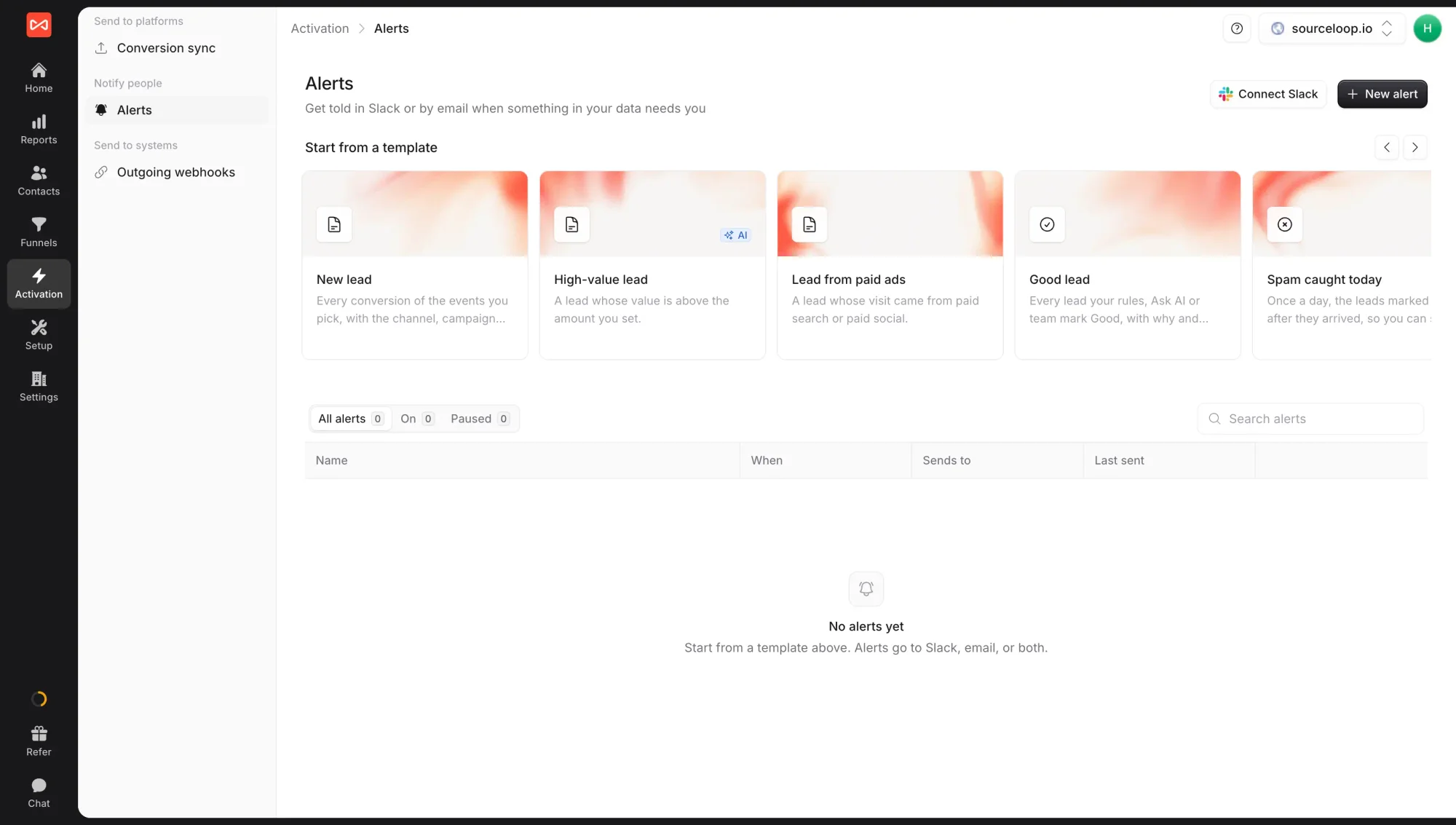
What you can be alerted about
An alert starts from one of three kinds of trigger:
- Something happens. A conversion is recorded, a lead is marked Good or Spam, a contact reaches a stage, a deal is created, won, lost, or moves stage, a trial starts, converts, or expires, a subscription starts, changes, or ends, a payment comes in, fails, or is refunded, or one of your integrations stops working.
- On a schedule. A summary every day, week, or month at the time you choose, such as yesterday’s leads by channel or last week’s ad performance.
- A number crosses a line. SourceLoop checks a number on a schedule and only messages you when it passes the line you set, such as cost per lead above target or leads down on the week before.
Before you start
- A SourceLoop workspace with the tracking code installed
- For Slack: permission to add apps to your Slack workspace
- For deal, subscription, and payment alerts: the matching CRM or payment tool connected
Step 1: Connect Slack (optional)
Skip this step if you only want email.
- Open Activation in the left sidebar, then Alerts.
- Click Connect Slack in the top-right.
- Pick your Slack workspace and click Allow.
You come back to the Alerts page connected. One connection covers every alert in the workspace.
Step 2: Start from a template or a blank alert
The fastest route is a template. Scroll the Start from a template row and pick the closest match:
- Leads: New lead, High-value lead, Lead from paid ads, Good lead, Spam caught today, Contact reaches a stage, Daily leads digest
- Deals: Deal won, with the campaign, and Deal stage changes
- Trials, subscriptions, and payments: Trial started, Trial converted to paid, New paying customer, Customer about to churn, Subscription ended, Payment failed, Payments received, Daily subscriptions summary
- Performance: Weekly performance, Weekly ad performance, Campaign spending with no leads, Cost per lead above target, Leads dropped
- Health: Tracking went quiet and An integration broke
Each template opens the builder already filled in. To start from nothing, click New alert instead.
Step 3: Choose when it fires
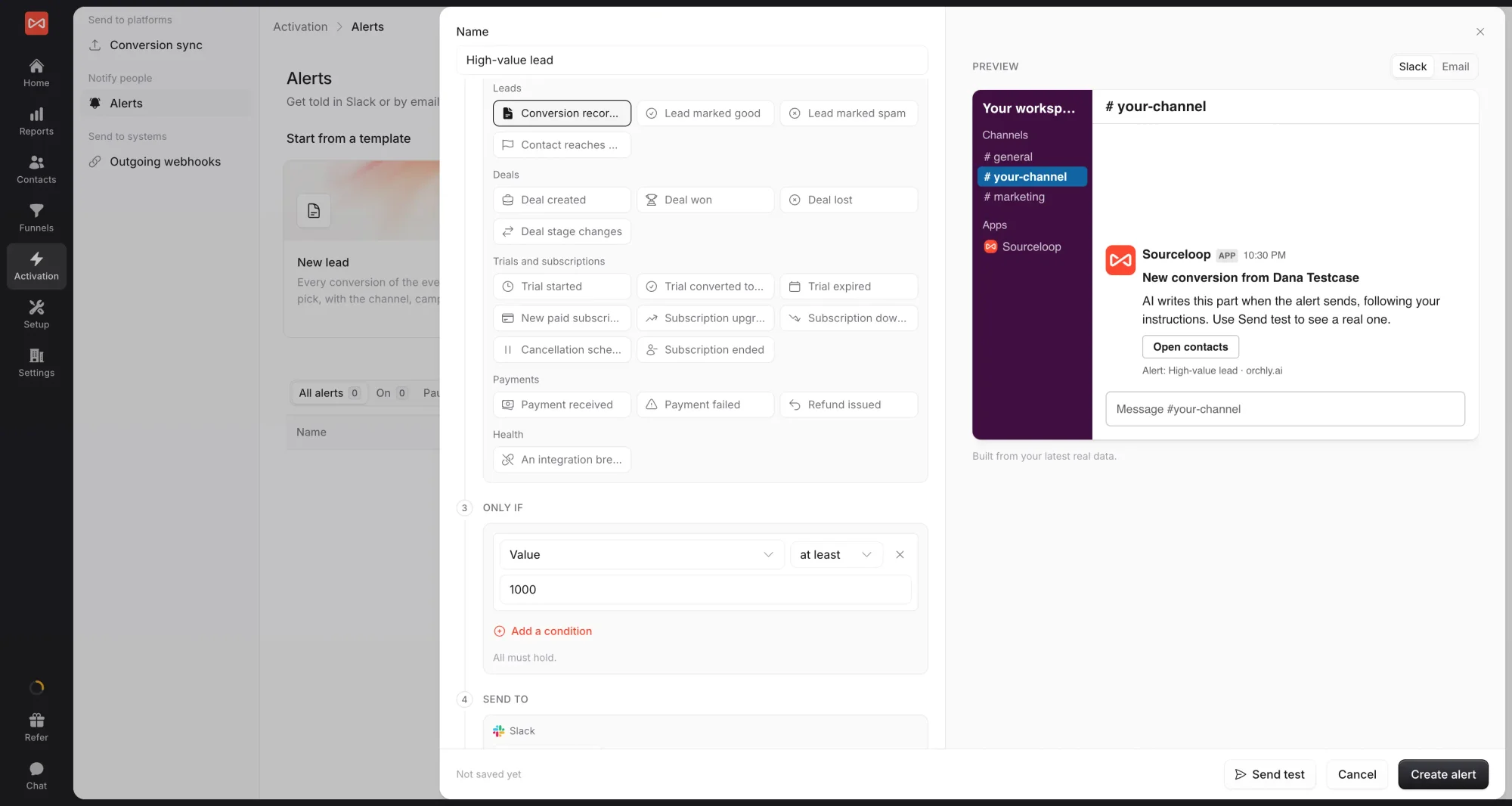
- Give the alert a Name your team will recognise in Slack, such as “High-value lead”.
- Under When, pick the trigger type, then the event, schedule, or number:
- For an event, click its tile, for example Conversion recorded or Deal won.
- For a schedule, pick Every day, week, or month and the time.
- For a number, choose what to check, the line it must cross, and how long to stay quiet afterwards so a number that stays high does not message you every hour.
Step 4: Narrow it down with conditions
Only if keeps an alert to the cases that matter. Click Add a condition and pick a field, a comparison, and a value. Some useful ones for lead alerts:
- Value at least 1,000, for leads worth a call today
- Channel is paid search or paid social, for leads from ads
- Campaign contains “brand”, to watch one campaign
- Conversion type is Meeting, for booked calls only
Every condition must hold for the alert to fire. Leave the step empty to alert on every event.
Step 5: Pick where it goes and how often
- Under Send to, add one or more Slack channels and any number of email addresses. Teammates appear by name; anyone else can be typed in.
- Under Delivery, choose the pace:
- Instantly: one message per event, within a minute. Best for leads someone should call now.
- Bundled every 15 minutes: events in the same 15 minutes arrive as one message, which keeps a busy channel readable.
- Hourly summary: one message an hour with everything that happened.
- Daily summary: one digest a day at the time you pick.
Step 6: Choose the message, preview, and test
- Under Message, pick System message for SourceLoop’s standard layout, or AI message and write a short instruction such as “One sentence on why this lead matters, then the campaign.” The AI writes from the alert’s own data. If it cannot answer in time, the standard message goes out instead, so nothing is missed.
- Check the Preview on the right. It is built from your latest real data and switches between how the alert looks in Slack and in Email.
- Click Send test. A real message goes to your chosen channels and inboxes, marked “Test:”.
- Click Create alert.
The alert appears in the table, switched on. Use the switch on its row to pause it, and open it to see its History: every time it fired and where it went.
What’s next
- See every lead with its quality and source: Contacts table
- Send the same events to Zapier, Make, or your own server: Outgoing webhooks
- See the channels behind your alerts: Traffic and Revenue report
Frequently asked questions
-
Can I send alerts to people who are not on my SourceLoop team?
Yes. Type any email address in the Send to step. The first email they receive explains who added them, and every alert email carries its own unsubscribe link, so they can stop it without asking you.
-
Can I post to a private Slack channel?
Connect Slack once from the Alerts page, then pick the channel in the Send to step. If a private channel is missing from the list, invite the SourceLoop app to that channel in Slack and it will appear.
-
Will spam leads trigger an alert?
No. Leads marked Spam, whether by your lead quality rules or by a teammate, never trigger an alert. If a rule is still waiting on an Ask AI answer, the alert waits for the decision too.
-
I manage several client websites. Do I need one alert per client?
No. Set Applies to as All clients and one alert watches every website in your account, sending one message grouped by client. These alerts go to Slack and team members only, so one client never sees another client's leads. Only admins can create them.
-
What happens if a Slack channel is deleted or an email bounces?
SourceLoop stops sending to that destination, emails the person who created the alert, and shows the problem at the top of the alert. Fix the destination and save the alert to turn it back on.
-
Do alerts carry my agency's branding?
If you have set up branding in Settings -> Branding, alert emails show your name and icon as the sender and use your brand colour on the button, and Slack messages post under your brand's name and icon.

 Paid Social


