
How to exclude pages, forms, and IP addresses from SourceLoop
Keep job applications, newsletter signups, admin pages, and your own team's visits out of your leads and reports, without changing your tracking code.
On this page
Not every form fill is a lead and not every visit is marketing. Job applications, newsletter signups, your own staff testing the site, and pages inside your app all distort results if they count. Exclusions keep them out, applied within a minute to every page that loads the tracking code.
Open Setup in the left sidebar, then Tracking code, and scroll to Exclusions. It has three tabs: Pages, Forms, and IP addresses.
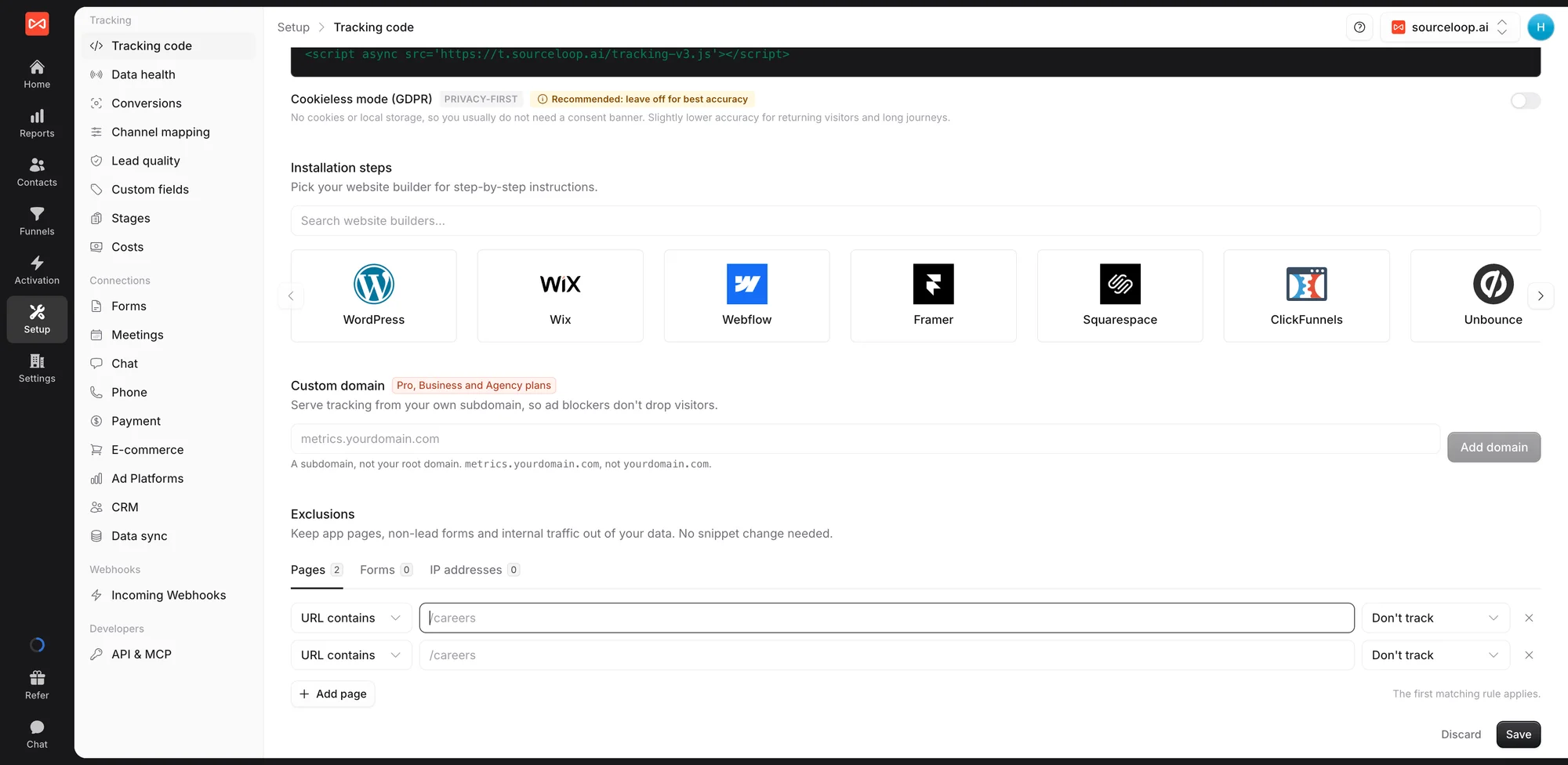
Exclude pages
Add a page rule with URL contains or URL is, then choose what happens there:
- Visits only: visits count, but form submits on these pages never become leads. Good for a careers page or a newsletter signup.
- Code events only: for app pages, only the events your developers send on purpose are recorded, not page views or automatic form capture. Useful when the tracking code also loads inside your logged-in app.
- Don’t track: nothing on these pages is recorded
- Track normally: an exception to a broader rule below it
URL contains matches anywhere in the address, so /careers covers /careers/designer. Use * as a wildcard, such as app.yoursite.com/*. URL is matches one exact page. The first matching rule applies, so put exceptions at the top.
Exclude forms
Add a form rule by Form ID or class, or by Has field named, for example a field called resume. Matching submits are still recorded as events but never become leads or contacts.
Exclude IP addresses
Enter an address, such as 203.0.113.7, or a range, such as 203.0.113.0/24. Nothing from these addresses is recorded. Click Add my IP to add the connection you’re on right now.
Save your changes. They apply to new traffic within a minute.
What’s next
- Mark past leads or exclude phone numbers: Lead quality rules
- Check what’s arriving: Verify tracking is working
- Install the tracking code: Install the tracking pixel
Frequently asked questions
-
Do exclusions remove leads I already have?
No. They apply to new traffic within a minute of saving. To clean up past leads, mark them Not a fit or Spam in Contacts, or with a lead quality rule.
-
Do I need to change my tracking code?
No. Exclusions are saved in SourceLoop and apply to every page with the tracking code, including single-page apps.
-
How do I exclude a phone number or an email address?
Use a lead quality rule instead, such as "Phone is any of these, then Spam". Calls and webhook leads don't pass through your website, so a lead rule is the place that sees them all.
-
My team works from home. How do I exclude everyone?
Ask each person to open the Exclusions section and click Add my IP from their own connection. Home IPv6 addresses change often, so SourceLoop adds the whole range their address sits in.
-
Can I track a page inside an excluded section?
Yes. Add a rule for that page set to Track normally and place it above the broader rule. The first matching rule applies.

 Paid Social


