
How to track lead source in Jobber
Track lead source in Jobber: see which channel, campaign, and ad produced every request, quote, job, and paid invoice, and write each client's source back into Jobber.
On this page
Home service businesses get leads from search, local service ads, referrals, and the van on the street, then do the real work in Jobber. Connecting Jobber closes the loop: every request, quote, job, and paid invoice is credited back to the channel, campaign, and ad that brought the client in.
Before you start
- A Jobber account where you can approve app connections
- The SourceLoop tracking code on your website, so new leads have a journey to credit
- An Admin or Editor role in SourceLoop
Step 1: Connect Jobber
- Open Setup in the left sidebar, then CRM.
- Click the Jobber card.
- Click Connect Jobber, sign in to Jobber, and approve access.
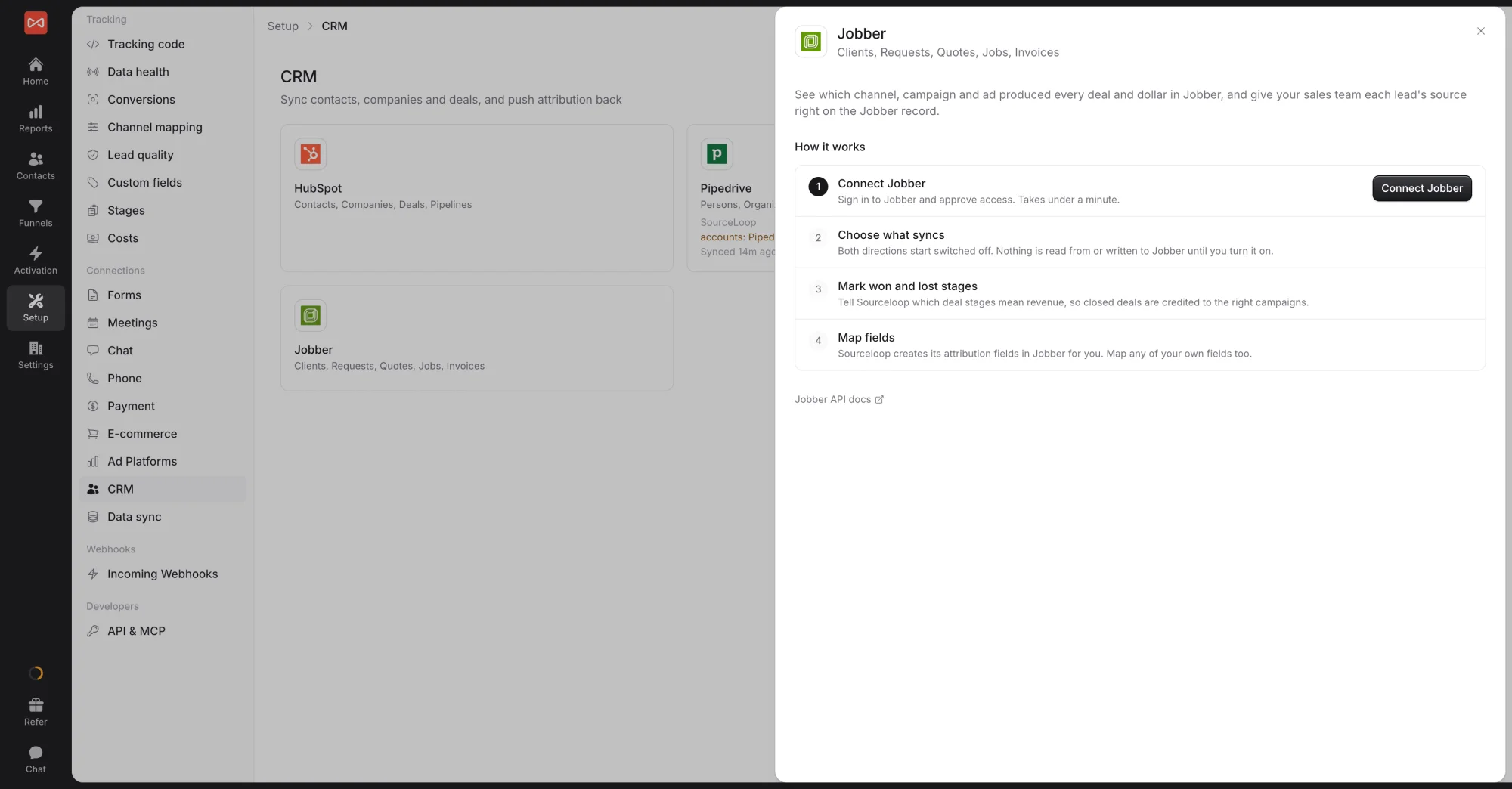
You can also install SourceLoop from the Jobber App Marketplace. You’ll be asked to sign in to SourceLoop and pick the workspace.
Step 2: Choose what syncs
On the Sync tab, each direction has its own switch:
- Bring Jobber data in: clients, requests, quotes, jobs, and invoices
- Send leads to Jobber: new website leads become Jobber clients with their channel and campaign. Choose All leads or Good leads only.
Both start switched off, so nothing is read or written until you turn them on. Under Records already in Jobber, click Find matching records to fill in attribution on clients SourceLoop has already matched. Nothing new is created.
Step 3: Check stages and fields
- Deal stages: the Jobber work pipeline already marks Quote approved through Paid as won and archived work as lost. Check it matches how you think about a sale.
- Fields: SourceLoop creates its attribution fields on Jobber clients for you, such as first channel, latest campaign, lead quality, and lead value.
Step 4: See the results
- Reports: in the Traffic and Revenue report, set Measuring to Deals by status to see paid work by channel and campaign, or measure revenue.
- Contacts and Deals: each client shows their journey, and each piece of work appears as a deal with its stage and value.
- Ad platforms: send won work back to Google Ads or Meta with conversion sync using the Deal won moment, so their bidding learns from paid jobs.
What’s next
- Send paid jobs to your ad platforms: Conversion sync overview
- Decide which leads count: Lead quality rules
- See revenue by channel: Traffic and Revenue report
Frequently asked questions
-
How does SourceLoop turn Jobber work into revenue?
Each piece of work, a request with its quotes, jobs, and invoices, becomes one deal on a Jobber work pipeline. Revenue is booked per invoice on the day it was issued, net of tax, so reports show which channel produced paid work and when the money came in.
-
Which stages does the Jobber work pipeline have?
New request, Quote drafted, and Quote sent while it's open. Quote approved, Job booked, Job completed, Invoiced, and Paid once it's won. Lost when the request or every quote is archived with no work booked.
-
Do Jobber requests count as leads?
Yes. A new request becomes a lead, unless the same person already became a lead another way in the week before, so a website form and its follow-up request aren't counted twice.
-
What does SourceLoop write back into Jobber?
Custom fields on the client with their first and latest touch, lead quality, and lead value, so your team sees where each client came from. You can also have new website leads created as Jobber clients.
-
Will it create duplicate clients?
No. SourceLoop matches existing clients by email, then phone, and only adds its own fields to a client that already exists.
-
What if a client has no tracked website visit?
If the client's Lead source is filled in Jobber, SourceLoop uses it as their channel instead of leaving them unattributed.

 Paid Social


