
How to Track Which Marketing Channels Sell Each Shopify Product
Track Shopify product attribution: revenue, units, refunds, and margin for every product, and the channels, campaigns, and ads that sold each one.
On this page
Shopify product attribution shows which marketing sells which products, not just which channels drive revenue. Knowing that paid social brought in revenue is useful. Knowing it sold mostly your lowest-margin product is more useful. The Products report lists every product with its revenue, orders, refunds, and margin, and opens each one into the channels and campaigns that sold it.
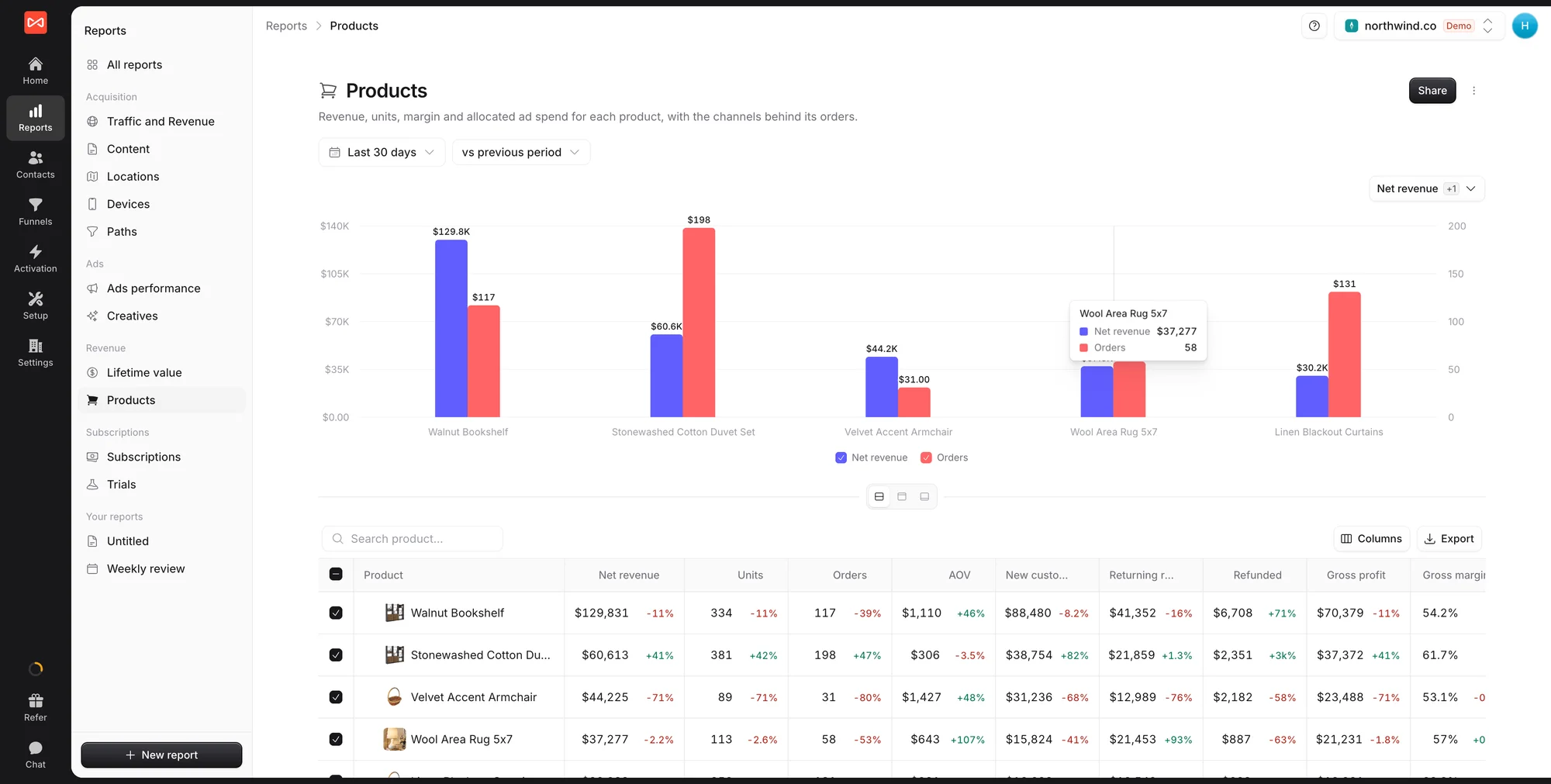
Open Reports in the left sidebar, then Products under Revenue. The report needs a connected Shopify store.
Step 1: Pick the period
Set the date range and the comparison period. Every figure in the table shows its change against the comparison underneath it.
Step 2: Read the product table
Each product gets one row with:
- Net revenue: sales after refunds
- Units sold and Orders containing the product
- AOV: average order value for orders with this product
- New customer revenue and Returning revenue: from first-time buyers and from buyers who had ordered before
- Refunded: money returned on this product
- Gross profit and Gross margin: once the product has a cost in Shopify
Search finds a product by name, and Columns lets you hide what you don’t need.
Step 3: Compare products on the chart
The chart above the table plots the products you tick. It starts with Net revenue beside Orders, so a product with many small orders stands out from one with a few large ones. Pick other figures from the menu at the top of the chart, and switch between chart, table, or both.
Step 4: See what sold each product
Expand a product to break it down by the channel its orders came from, then by source, medium, and campaign. This is where you find out whether a bestseller is carried by one campaign or sells everywhere, and which ads are selling your high-margin products.
Step 5: Export or share
Export downloads the table as a CSV. Share gives a client or colleague a live link, and the menu next to Share exports a PDF or PowerPoint deck, or makes an editable copy.
What’s next
- See what customers are worth over time: Lifetime value report
- Compare ad spend with revenue: Ads performance report
- Set up Shopify attribution: Marketing attribution for Shopify
Frequently asked questions
-
Why are Gross profit and Gross margin blank for some products?
They need a cost per product. In your Shopify admin, open the product and fill in **Cost per item** under Pricing. SourceLoop picks the cost up with your catalog. Products without a cost are left out of profit and margin instead of being shown at 100%, so a partly costed catalogue never overstates your margin.
-
What is the difference between new customer and returning revenue?
New customer revenue comes from orders that were the buyer's first-ever order with your store. Returning revenue comes from buyers who had ordered before, even if that earlier order was outside the date range.
-
Which channel does a product's revenue belong to?
Expanding a product shows the last-touch channel, source, medium, and campaign behind its orders, meaning the visit the buyer was on when they placed the order.
-
Does this work with stores other than Shopify?
The Products report reads product-level orders from a connected Shopify store. Payment tools such as Stripe report payments rather than products, so their revenue appears in the Traffic and Revenue, Lifetime value, and Subscriptions reports instead.

 Paid Social


