
How to turn on two-factor login for your SourceLoop account
Protect your SourceLoop account with a code from an authenticator app, on top of your password or Google sign-in.
On this page
Two-factor login adds a second step when you sign in: after your password or Google sign-in, SourceLoop asks for a six-digit code from an authenticator app on your phone. Someone who learns your password still can’t get in.
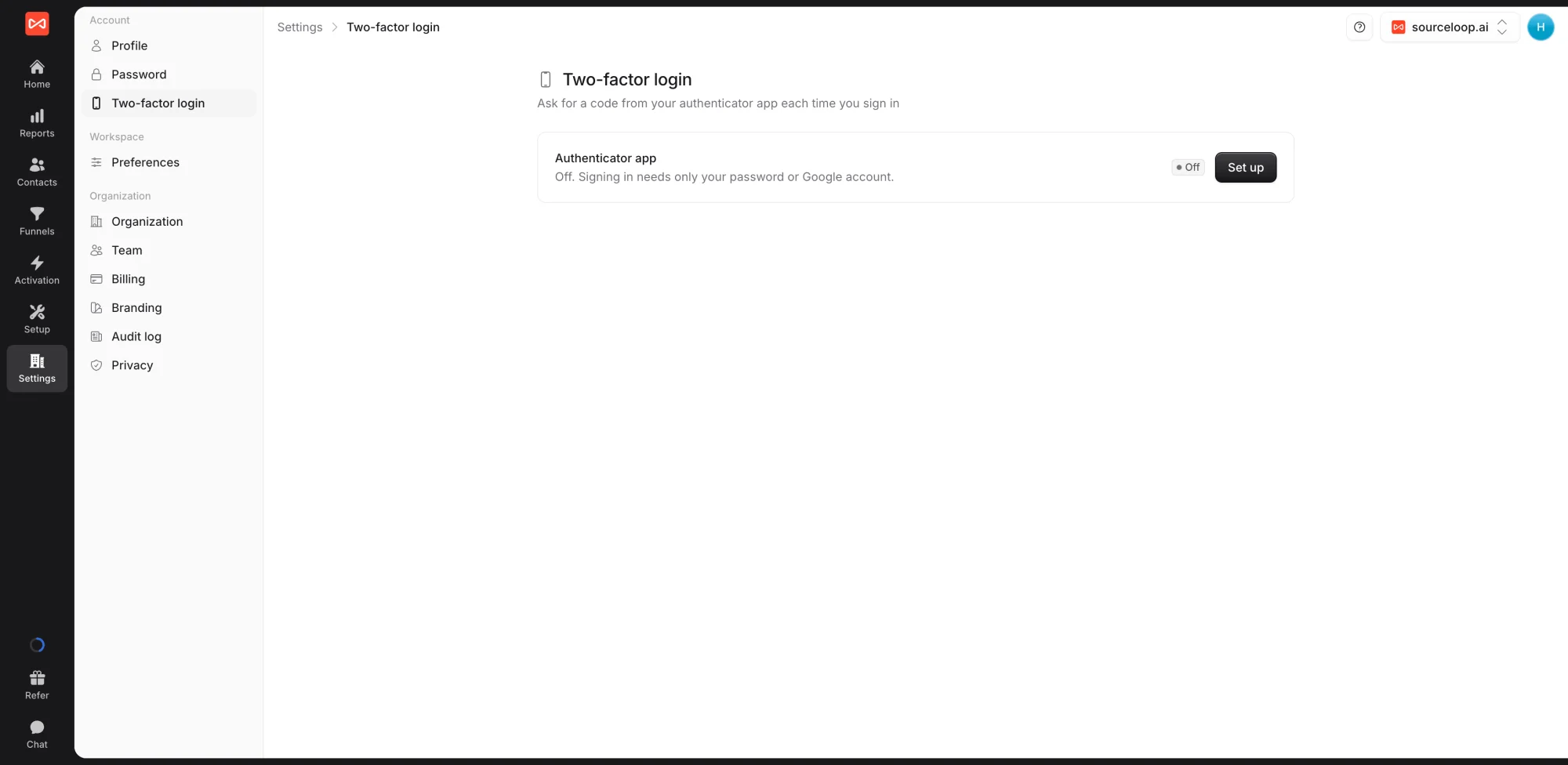
Turn it on
- Open Settings in the left sidebar, then Two-factor login under Account.
- Click Set up.
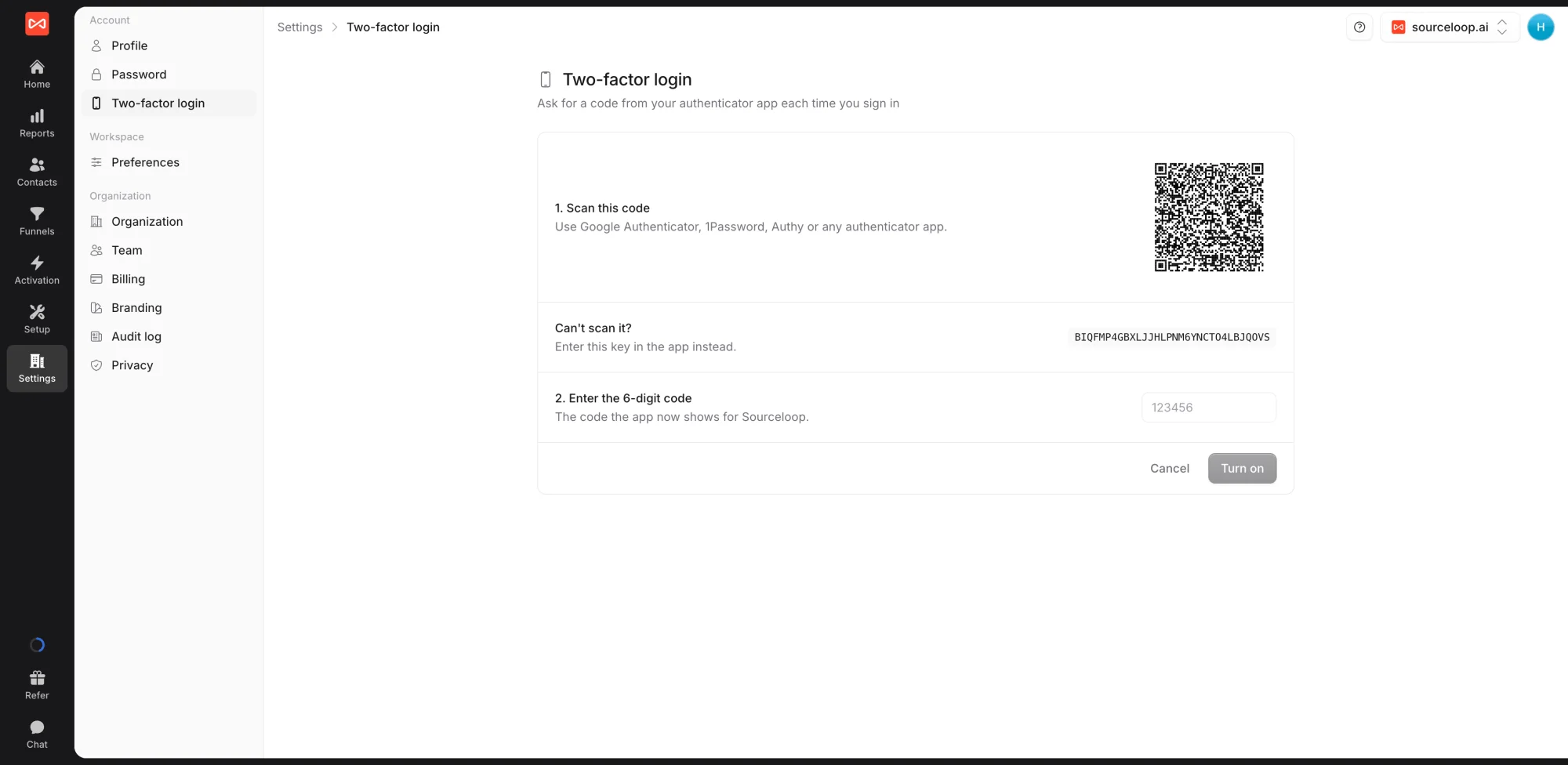
- Scan the QR code with your authenticator app, such as Google Authenticator, Microsoft Authenticator, 1Password, or Authy. Can’t scan it? Type the key shown under the code into the app instead.
- Enter the six-digit code the app shows and click Turn on.
The page now says Two-factor login is on. From your next sign-in, SourceLoop asks for a code after your password or Google sign-in.
Turn it off
Open Settings, then Two-factor login, and click Turn off. Signing in then needs only your password or Google account.
What’s next
- See who changed what in your workspace: Audit log
- Add teammates: Invite team members
Frequently asked questions
-
Which authenticator apps work?
Any app that shows six-digit codes that change every 30 seconds, such as Google Authenticator, Microsoft Authenticator, 1Password, or Authy.
-
Does it work when I sign in with Google?
Yes. After Google signs you in, SourceLoop asks for the code from your authenticator app.
-
What if I lose my phone?
There are no backup codes. Email [email protected] from your account's email address. Once we've confirmed it's you, we remove the authenticator so you can sign in and set up a new one.
-
Can I require two-factor login for my whole team?
Not yet. Two-factor login is optional and each person turns it on for their own account.
-
My code is rejected. Why?
Codes change every 30 seconds. Enter the current one, and check that your phone's clock is set automatically.

 Paid Social


