
How to Share Marketing Reports with Clients and Your Team
Share live marketing reports with clients by link, with a fixed date range, a password, and your branding, or give teammates view or edit access.
Every report, pre-built or your own, can be shared two ways: with your team, by giving people in your workspace access, and externally, with a live link a client can open without logging in.
Share with your team
Use this for reports you build yourself. Pre-built reports are visible to everyone on the website already.
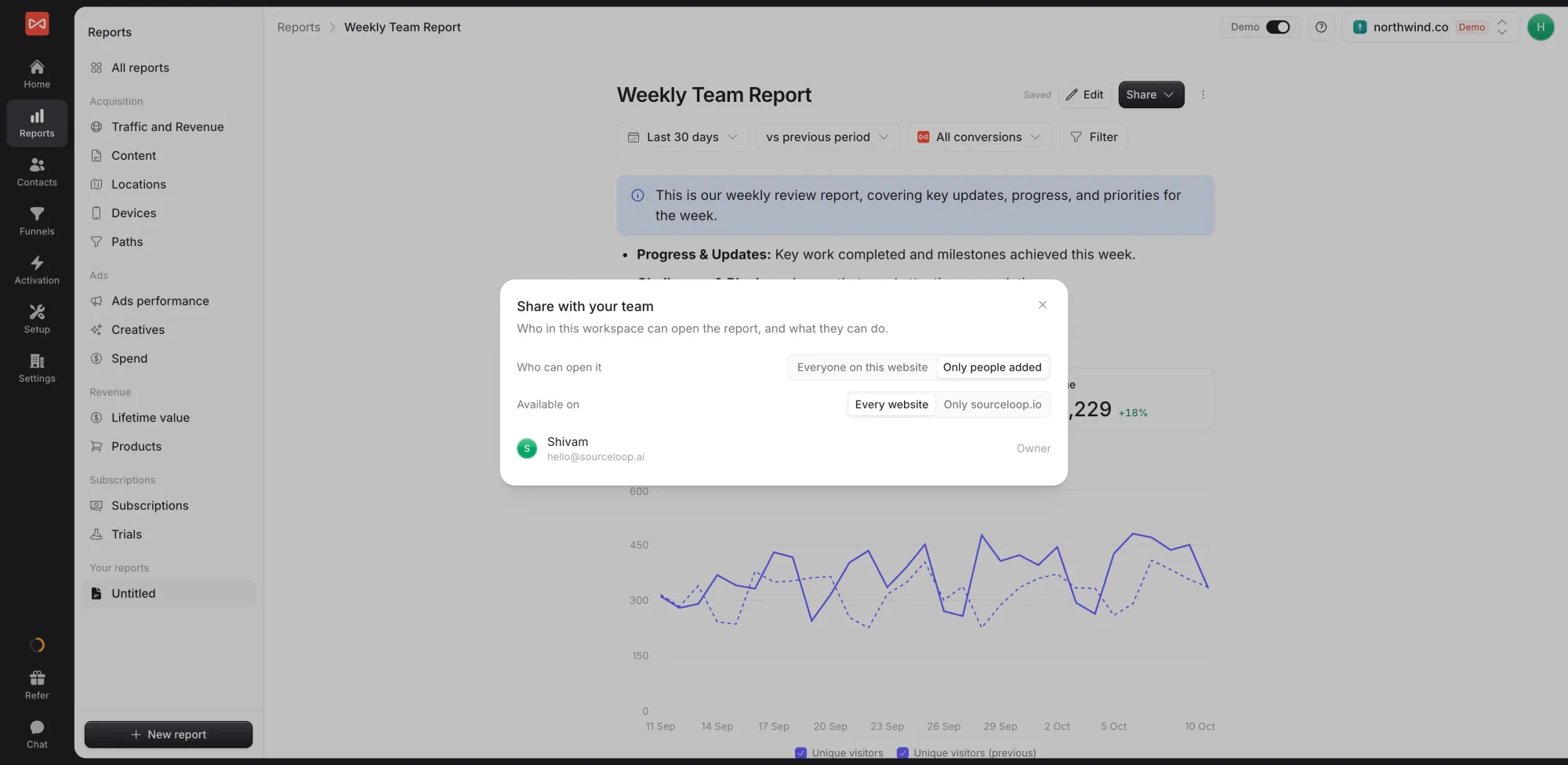
- Open the report and click Share, then Share with team.
- Under Who can open it, choose:
- Everyone on this website: every teammate who can see the website can edit
- Only people added: private to you and the people you add
- Search for teammates and set each one to Can view or Can edit.
- Under Available on, choose Every website, so the report reads whichever website is selected, or Only its website.
The report’s creator and workspace admins can always edit. Only they can change who has access.
Share externally with a link
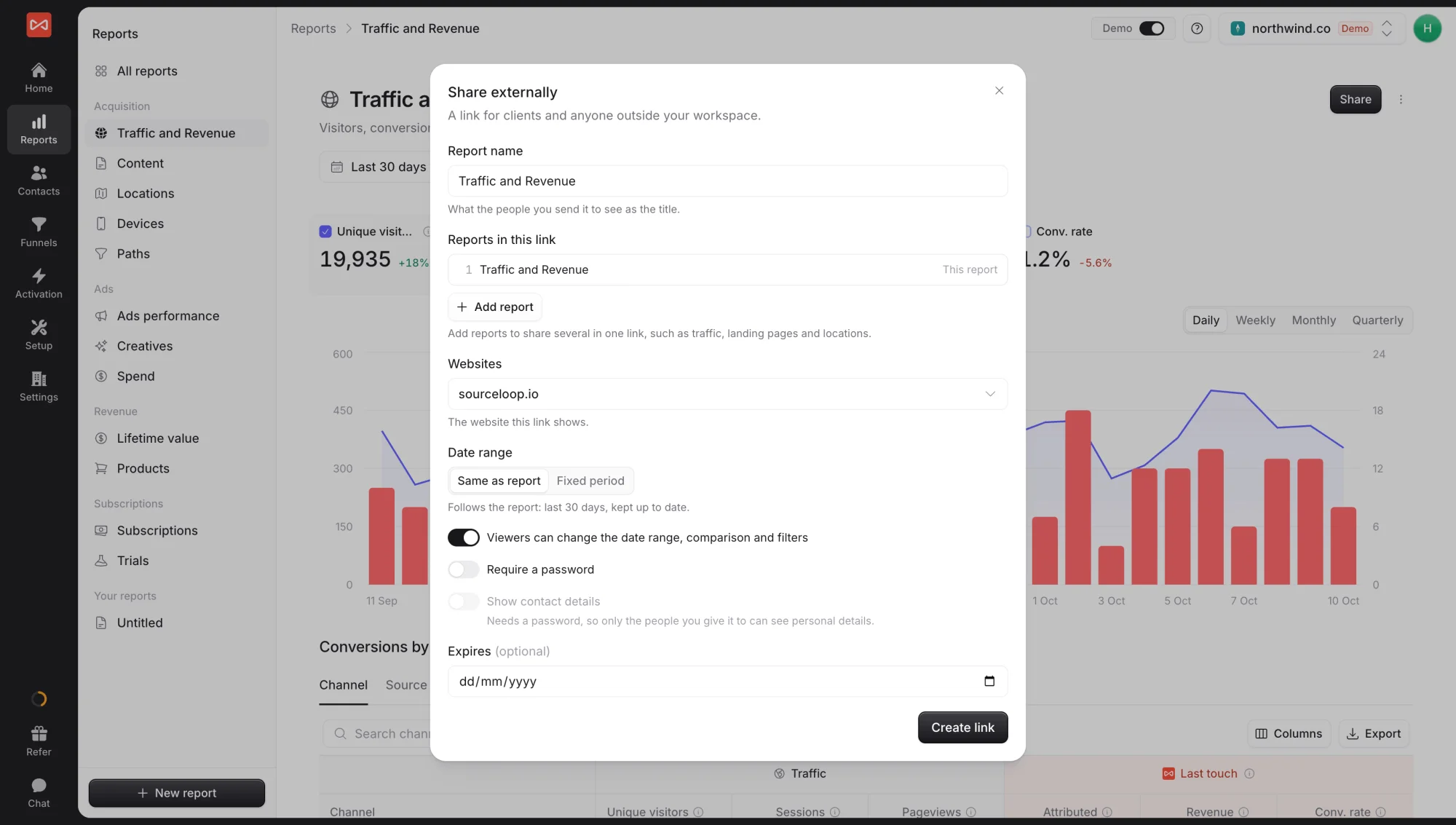
- Open the report and click Share. On a report you built, choose Share externally.
- Set what the link shows:
- Report name: the title your client sees, such as “Acme, October report”
- Reports in this link: click Add report to bundle several, such as traffic, landing pages, and locations
- Websites: which website, or several websites with a switcher for viewers
- Date range: Same as report, which keeps rolling, or Fixed period
- Decide what viewers can do:
- Viewers can change the date range, comparison and filters: on for an explorable link, off for a locked one
- Require a password: recommended for anything sensitive
- Show contact details: full names, emails, and phone numbers in lists of people. Needs a password.
- Optionally set Expires.
- Click Create link and copy it.
The link opens as a clean page with the report, a sidebar when it holds several reports, and your branding if you’ve set it up.
Manage your links
Every link appears under Active links in the Share externally dialog, with its date range and number of views. Copy a link again or revoke it from there. Creating and revoking links is recorded in Settings -> Audit log.
What’s next
- Send a file instead of a link: Export a report to PDF or PowerPoint
- Show your logo, colours, and domain: White-label branding
- Build a report for a client: Create a custom report
Frequently asked questions
-
Does the person I share with need a SourceLoop account?
Not for an external link. Anyone with the link can open it in a browser. Sharing with your team is for people already in your workspace.
-
Can a client see the names and emails of my leads?
Not by default. Lists of people behind a number are masked on shared links. You can turn on Show contact details for a client who owns those leads, but only on a link that has a password.
-
Will the link keep showing new data?
Yes. Links are live. With Same as report, the date range rolls forward, so "last 30 days" stays current. With Fixed period, the link always shows the period you chose.
-
How do I stop a link from working?
Open Share, then Share externally, find the link under Active links, and revoke it. You can also set an expiry date when you create a link.
-
Can I put several reports behind one link?
Yes. Under Reports in this link, click Add report. Viewers move between them from a sidebar, in the order you set.
-
Can I share on my own domain?
Yes. Set a share domain, such as reports.youragency.com, in Settings -> Branding, and links open there with your logo and colours.

 Paid Social


