
How to White-Label Marketing Reports for Your Clients
Put your agency's or each client's logo, colours, fonts, and domain on shared report links, PDFs, PowerPoint decks, and alert emails.
On this page
When you send a client a report, it should look like it came from you. Branding puts your logo, colours, fonts, and domain on everything your clients see: shared report links, PDFs, PowerPoint decks, and alert emails.
Open Settings in the left sidebar, then Branding under Organization.
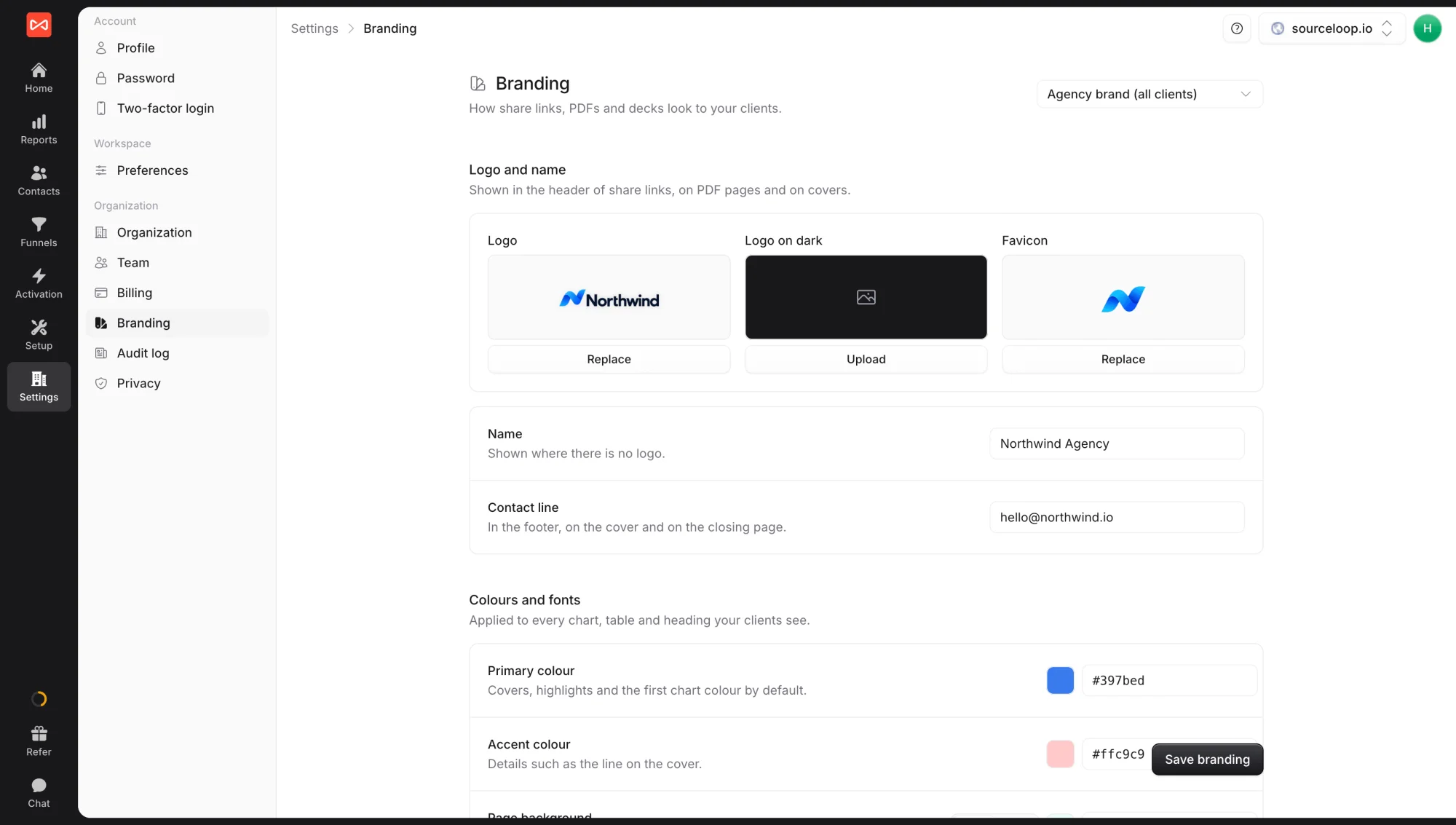
Step 1: Choose which brand you’re editing
The menu at the top right picks the brand:
- Agency brand (all clients): the default for every client website
- A client’s website: overrides for that client only, such as their own logo and colours
Each field falls back to the agency brand when a client’s is left empty, so you only fill in what differs.
Step 2: Add your logo and name
Under Logo and name:
- Logo: shown in the header of share links, on PDF pages, and on covers
- Logo on dark: a light version for dark pages and covers
- Favicon: the browser tab icon on share links, and the icon on alert emails and Slack messages
- Name: shown where there’s no logo
- Contact line: in the footer, on the cover, and on the closing page, such as [email protected]
Step 3: Set colours and fonts
Under Colours and fonts:
- Primary colour: covers, highlights, and the first chart colour
- Accent colour: details such as the line on the cover
- Page background: Light or Dark. On dark, text, tables, and lines turn light.
- Chart colours: up to 12, in the order chart series use them
- Heading font and Body font: any Google Font, or the app default
Step 4: Style PDFs and decks
Under PDFs and decks:
- Cover page: Title block, Brand colour, Full photo, Half photo, or No cover, with a Cover photo for the photo layouts
- Header text and Footer text: such as “Confidential”
- Closing page: the words above your contact line on the last page
- Hide “Made with Sourceloop”
Step 5: Use your own domain for share links
- Under Share domain, enter a subdomain you control, such as
reports.youragency.com, and click Add domain. - At your DNS provider, add the CNAME record SourceLoop shows.
- Click Check. Once it is verified, share links open on your domain.
Click Save branding when you’re done.
What’s next
- Send a branded live link: Share a report
- Download a branded PDF or deck: Export a report
- Send branded alerts to clients: Slack and email alerts
Frequently asked questions
-
Where does my branding appear?
Everywhere your clients see SourceLoop data, shared report links, PDFs, PowerPoint decks, and alert emails and Slack messages. Inside the SourceLoop app, reports keep SourceLoop's own look for you and your team.
-
Can each client have their own brand?
Yes. Pick the client's website from the brand menu at the top of Settings -> Branding and set anything you want to differ. Anything you leave empty falls back to your agency brand.
-
How do I put share links on my own domain?
Under Share domain, enter a subdomain such as reports.youragency.com and click Add domain. Add the CNAME record SourceLoop shows at your DNS provider, then click Check. Once it is verified, new share links open on your domain.
-
Can I remove "Made with Sourceloop" from exports?
Yes. Turn on Hide "Made with Sourceloop" in the PDFs and decks section.
-
Who can change branding?
Workspace admins.

 Paid Social


